
Download VLC
Pick the right architecture and leave third-party installer wrappers behind.
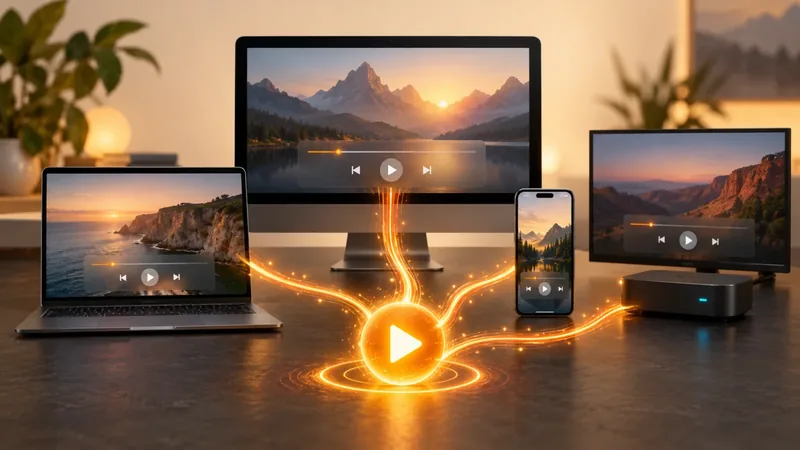

Download VLC from the official VideoLAN destination for your operating system. VLC.ONL does not host installers; it explains which build to choose and how to fix common playback problems.
Independent resource · We never host or wrap VLC installers
Downloads point to VideoLAN
CLEAR INSTRUCTIONSOne practical task per guide
TRACEABLE GUIDANCESources and limits are stated
Start with your operating system, then check the processor or package source. VLC.ONL explains the choice before sending you to VideoLAN; it never places an installer between you and the official project.
| Device | Usual choice | Check before downloading | Decision guide |
|---|---|---|---|
| Windows PC | 64-bit Intel or AMD build for most current PCs | Windows on Arm devices need the ARM64 build. Confirm the system type in Windows settings. | Choose VLC for Windows |
| Mac | Apple silicon build for an M-series Mac | Older Macs use Intel processors. Check About This Mac before choosing a build. | Choose VLC for macOS |
| Linux computer | Your distribution's maintained package | Repository, Flatpak and Snap packages can differ in update timing, integration and permissions. | Choose a Linux VLC package |
| Android device | The official app reached through VideoLAN | Grant access only to the media or folders VLC needs. Android TV has a different library workflow. | Install VLC for Android |
| iPhone or iPad | The official App Store edition | Plan how media will enter the app through Files, sharing, a local network or cloud storage. | Install VLC for iPhone or iPad |
Prefer the project itself? Open the official VLC page from VideoLAN, or use the VLC.ONL download checklist for architecture, store and installer safety checks.
Start with the official VLC download decision, learn a control in the VLC playback handbook, use a browser-local task in the free video tools, upload and share a video with a temporary link, or find a matching file in the VLC subtitle directory. For playback failures, check the formats and codecs guide before working through the VLC troubleshooting matrix.
Pick the right architecture and leave third-party installer wrappers behind.
Frame stepping, subtitles, picture geometry, conversion and more.
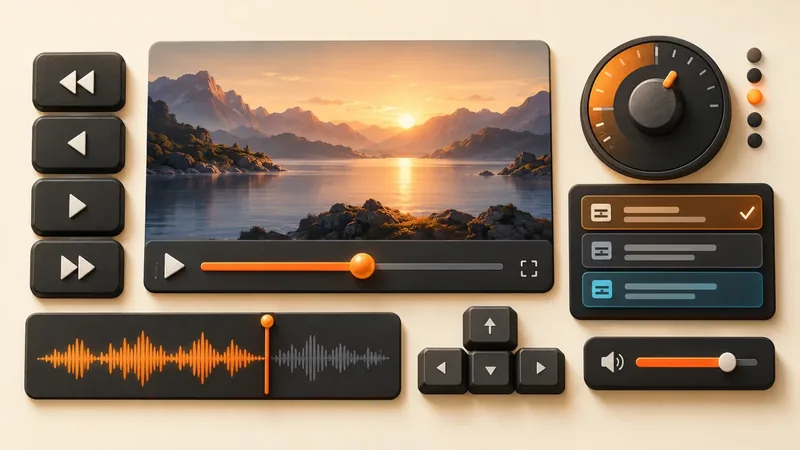
Separate discovery, network and codec problems before changing settings.
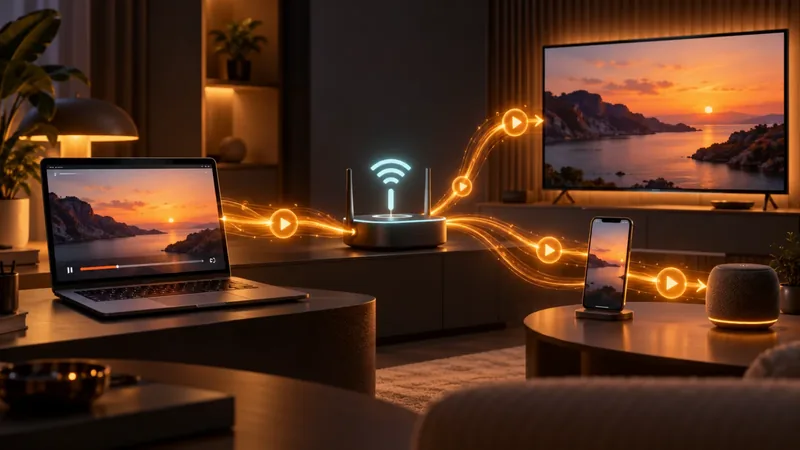
VLC is a free, open-source multimedia player and framework published by VideoLAN. It plays local media, discs, capture devices and network streams, but the right workflow depends on whether you need playback, conversion, recording or delivery to another screen.
A filename extension identifies a container, not every stream inside it. Check the container, video codec, audio codec and subtitle track before assuming the player is broken.
Check VLC formats and codecs >Frame stepping, aspect ratio, subtitle selection, sync, bookmarks and resume behavior are player tasks. Start with the exact control instead of resetting the whole application.
Open the VLC playback handbook >VLC can transcode a file, extract audio and record selected sources. It is not a full nonlinear editor, and a lossy conversion cannot restore detail missing from the source.
Understand VLC editing and export limits >Discovery, network reachability, codec support and the receiving device are separate layers. Identify the failed layer before changing cache, firewall or transcoding settings.
Choose a VLC streaming workflow >Use focused browser tools to trim and export a file, calculate a frame shape, inspect local metadata, or create a temporary sharing link for a finished video.
Open the free video tools >Search by movie or series title, compare release and timing details, then download the closest subtitle file to load into VLC.
Search the VLC subtitle directory >Many download pages stop after describing VLC. This site follows the next decision: which build fits the device, which setting controls the task, what result to expect, and where VLC reaches a real limitation.
VLC.ONL is independent from VideoLAN. It does not mirror installers, claim endorsement, invent hands-on tests, or hide the destination of a download link.
Read the editorial and automation policy to see how sourcing, updates and imported articles are handled.
Step through a video one frame at a time in VLC, learn the default shortcut, and understand why backward frame stepping is different.
Load embedded or external subtitles in VLC, fix track selection and timing, and understand which subtitle styles can be changed.
Extract an audio stream from a video using VLC Convert/Save, choose a compatible profile, and avoid overwriting the source.
Cast video from VLC to Chromecast, then diagnose renderer discovery, firewall, local-network and codec problems in the correct order.
Enable VLC resume prompts, understand recent-item privacy, and fix local files that restart at the beginning instead of the saved position.
Adjust VLC brightness, contrast, color and sharpness for playback, while separating player filters from display or source problems.
VLC Android Permissions: What Access Is Necessary. Check system and processor, make one safe change and verify the result in VLC before keeping it.
Choose a VLC Package on Ubuntu, Debian or Fedora. Check system and processor, make one safe change and verify the result in VLC before keeping it.
Fix macOS Blocking VLC After a Safe Download. Check system and processor, make one safe change and verify the result in VLC before keeping it.
When VLC misbehaves, test which layer owns the problem. A second file tests the media. A fresh VLC profile tests the player. Another output device tests the system. That simple matrix is more useful than a generic list of 20 “fixes.”
Use the troubleshooting matrix